Pre-selection of applicants by sending NAs
Preselection of applicants
- Login
to your account at tcanetplatform.com
- On
the left-side menu go to ‘Calls’ >>> ‘Active preselection’
- Find
the relevant call (such as ‘Call for Participants (#394) Bridges Beyond’)
- You
can click on the number under the ‘Preselection’ column to access the
preselection page filtered for your NA:
 Note:
If the number shown is 0, there may be no applications from your country or
there could be some setting problems. You can contact eda@salto-youth.net if you have any doubts.
Note:
If the number shown is 0, there may be no applications from your country or
there could be some setting problems. You can contact eda@salto-youth.net if you have any doubts. Clicking on the number should lead you to the pax preselection page with 'Activity', 'Call' and 'Sending organisation' filters correctly filled in for you:
Choose the staff in charge of selection from the drop-down list:
This list should only include the Platform-registered colleagues from your NA/SALTO. If there are errors here, please report to eda@salto-youth.net- Fill
in the sending capacity field (as a number). This number is the amount of
people you will financially support for this activity.If you can support
maximum 2 people, enter 2.
- Click 'Save'.
 Note:
You can indicate this number also after you have read all applications. But
please note that only when you have entered a number here you will be able
to distinguish your main and waiting list.
Note:
You can indicate this number also after you have read all applications. But
please note that only when you have entered a number here you will be able
to distinguish your main and waiting list. - You can read the applications by clicking on the name of the applicant.
If you wish to view the statuses of previous applications by this person (for other calls) click on the number under the ‘Total applications and participations’ column:
This way you will know if the same applicant was supported in other activities, whether they attended or were ‘no show’ etc. - You
can do the selection in two ways: individually or as a group as follows:
- Individual
status change:You read an application with a very fitting profile for the call. You can
change the status to ‘Preselected’ on the right side of the application:If this is not a fitting application, you can change the status to ‘Rejected’ instead.Please note that you will use ‘Preselected’ both for your main list and your waiting list.
Do not forget to click on ‘Update’ for your status changes to be saved.If you wish to leave a comment for a specific application, you can do so using the 'Comment' field at the bottom of each application: - Status change on the table: Click on the 'edit status in table' link:
Now you should be able to change the statuses directly on the table:
Change the status to 'Preselected' both for your main list and waiting list. Use the 'Rejected' status for the not-supported applicants. Click on 'Update' for every change. Once you do that, you will that your preselected applicants will show on the upper menu as well:
In this example, I have 3 preselected applications and my sending capacity is 1. This means 1 preselected applicant is in my main list, the remaining 2 are in my waiting list.
I can change the priority list, by dragging and dropping the applications. In my case, ‘Testing again’ is a better application than the other two, so I will drag and drop that person to the top of the list:
As you can see, now my priority order changed and ‘Testing again’ is in my main list, the other two preselected applicants are in my waiting list. I can change the priority order of the applicants in my waiting list as well.
- If I
wish to, I can also increase my sending capacity, so that I can support more
applications.
Once you are satisfied with your order, please click on ‘Save order’ otherwise your priority order will not be saved.
Now you can change the statuses of the remaining applicants to ‘Rejected’ and update each status change.
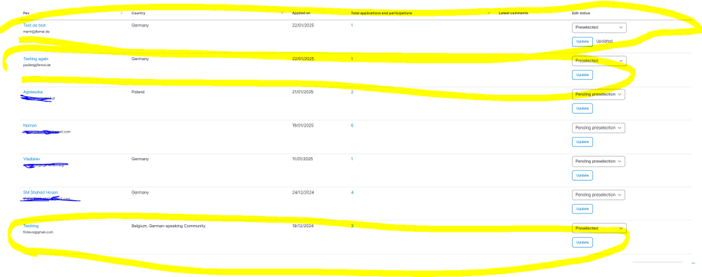
Note: The preselected applicants still remain in the main table. Please pay attention not to accidently change their statuses to ‘rejected’. See the example below where ‘Testing again’ is still in the applications table:
Checklist for preselection
Have
you done the following:
- You have indicated the person in charge of preselection and your sending capacity and have saved your changes
- You have changed all ‘Pending preselection’ application statuses to either ‘Preselected’ or ‘Rejected’ and clicked on ‘Update’ for each status change
- You have dragged and dropped the preselected applications to rank your priority order (differentiating the main and waiting list) and you have saved your priority order
If you replied to all the above questions with yes, your preselection is complete. Thank you! Now the hosting NA/SALTO will finalise the selection and inform you of the next steps.
- You have indicated the person in charge of preselection and your sending capacity and have saved your changes
- You have changed all ‘Pending preselection’ application statuses to either ‘Preselected’ or ‘Rejected’ and clicked on ‘Update’ for each status change
- You have dragged and dropped the preselected applications to rank your priority order (differentiating the main and waiting list) and you have saved your priority order
If you replied to all the above questions with yes, your preselection is complete. Thank you! Now the hosting NA/SALTO will finalise the selection and inform you of the next steps.
Related Articles
Final selection and composition of participants
Recording available here to watch! Log in to your account at www.tcanetplatform.net On the left-hand menu, go to Pax >>> Participant selection >>> As host OR As activity organiser Note: You will see that you can choose the role 'As host' (in case you ...Welcome kit for TCA/NET newcomers Officers
Welcome to the TCA/NET network! Dear Newcomer TCA and/or NET Officer colleague, The team at TCA/NET Working Group is very excited to have you on board! But, what is the TCA/NET Working Group? The TCA/NET Working Group (WG) is here to support National ...Welcome kit for TCA/NET newcomers Officers
Welcome to the TCA/NET network! Dear Newcomer TCA and/or NET Officer colleague, The team at TCA/NET Working Group is very excited to have you on board! But, what is the TCA/NET Working Group? The TCA/NET Working Group (WG) is here to support National ...Showing interest of partnership and committing funding for an activity of other NAs/SALTOs
When you have seen an activity that other NAs/SALTOs are organising and you wish to cooperate with the colleagues on this activity, you can show your interest by commenting on it. For this you need to scroll to the bottom of the activity and enter a ...Timeline and tasks concerning participant management
Cancelling an activity Agree with the team on a final deadline to cancel or postpone an activity if - despite all efforts - there are not enough participants. Consider the venue contract when setting this date, as it usually specifies a deadline for ...